Part 1 — Understand BigWave · Chapter 4
Who Does What in BigWave
BigWave shows each person a different view depending on two things: their access level, meaning what kind of user they are, and their role, meaning which permissions that kind of user has. Both map onto the people at Beacon Electric below.
Access levels
Every login belongs to one or more access levels:
- Internal (company). Your office staff. Sees the full application, subject to role permissions.
- Technician. Field workers. A focused view centered on their own assignments.
- Customer. A login attached to one of your customers. Sees only their work in the portal.
- Site. Like a customer login, scoped to a single site. Useful when a store manager should see their own location and nothing else.
- Partner. A login attached to a partner company. Sees the projects and assignments you share with them. Partner technicians see their assignments the way your own techs do.
Separately, a login can be flagged admin, which unlocks administrative buttons like status list editing and defaults, plus the Setup screen.
Roles: permissions within a level
Roles are defined under Setup/Roles. A role is a grid of per-screen permissions: for each screen and panel in the product, can this role read it, create records, update them? Assign each user a role and their navigation omits what they can’t see. Panels that lack read access never render in the navigation list.
Roles can also restrict individual custom fields, so a margin figure or an internal note can live on a work order without every role seeing it.
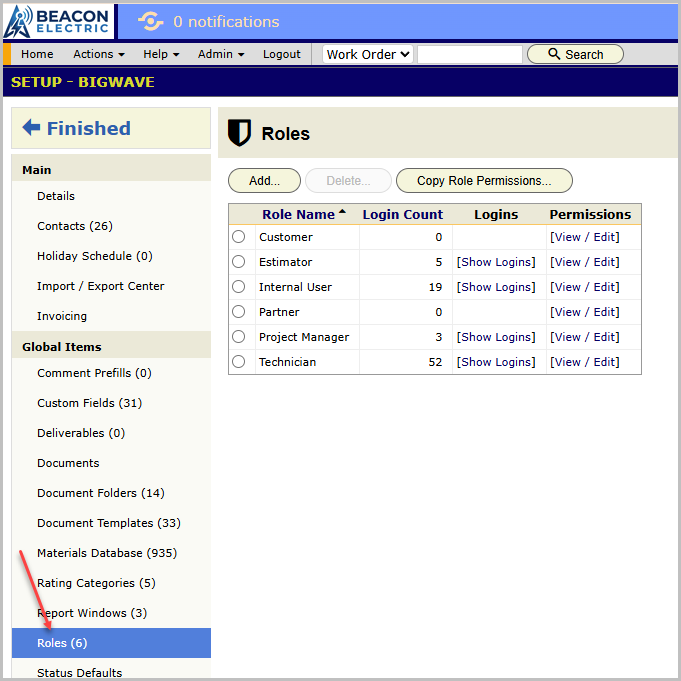
Create the few roles you actually staff, not the many you can imagine. Beacon runs six: Internal User, Customer, Technician, Partner, Estimator, Project Manager. You can split a role later when a real person needs different access. Otherwise, keep the list minimal.
The people at Beacon
Marcus (owner, internal + admin). Sees everything: all four home page groups, Setup, Accounting. Lives in All Work Orders, project setup and reports.
Priya (office manager and dispatcher, internal). The same home page minus the admin extras. Her day is the Global group: All Work Orders, the Resource Calendar, Create Work Order.
Grace (accountant, internal). Her role trims the setup screens away and keeps the money: work order Quote / Invoice panels, payment history, the Accounting screen, exports.
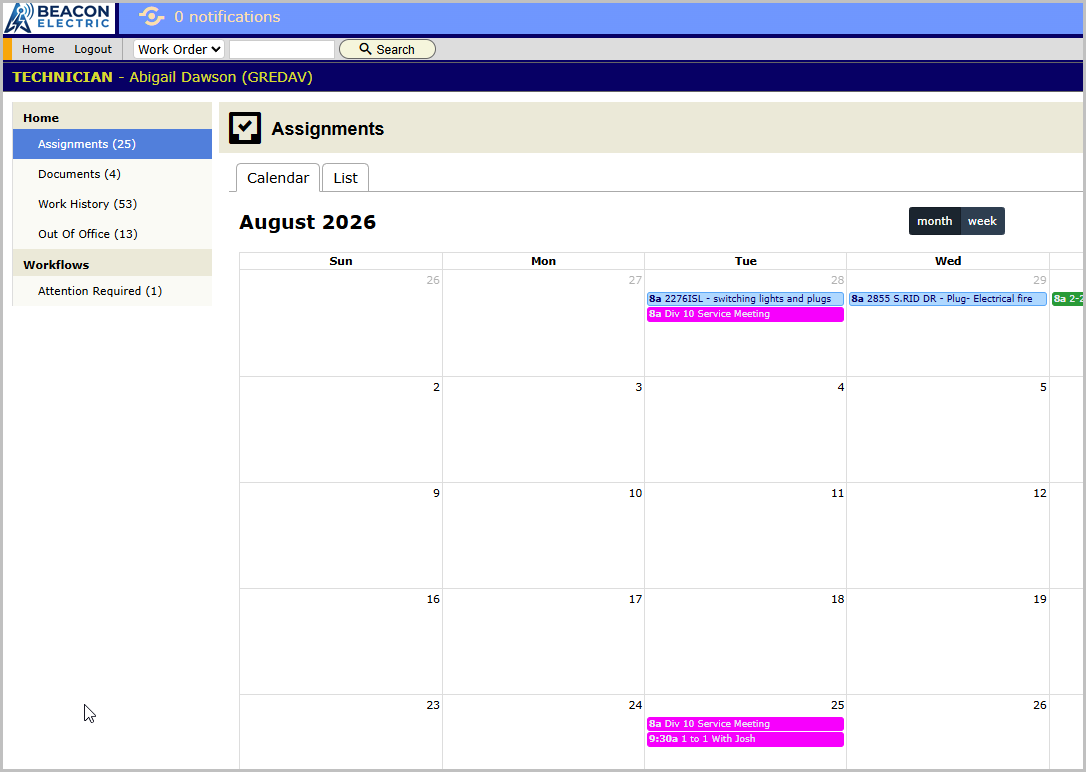
Abigail (field electrician, technician). Logs in and lands on Assignments: today’s jobs in a calendar, each one tap from the work order where she adds comments, photos, time and materials. She also has her own record with her documents, her out-of-office dates, and My Badge, a shareable ID page showing her photo and credentials that she can present on site. Chapter 17 has more detailed information.
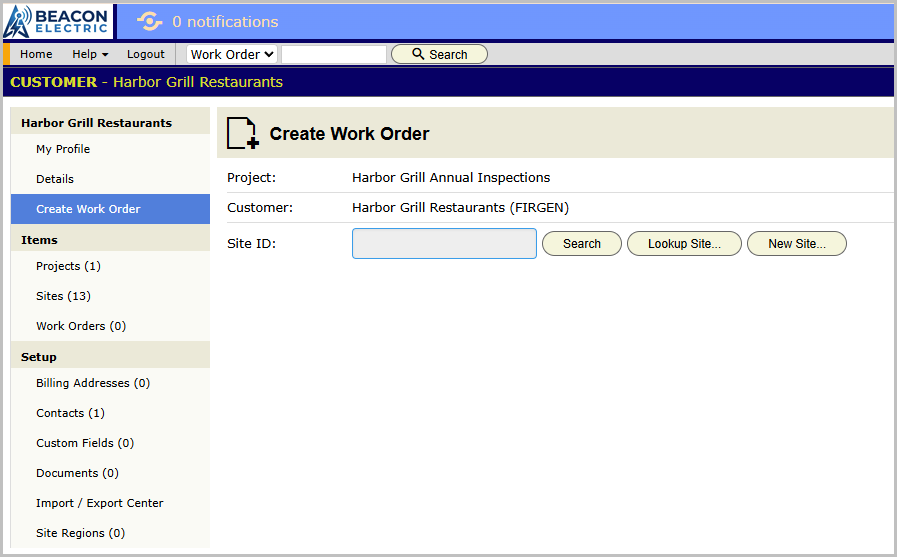
Harbor Grill’s facilities manager (customer login). Logs into the portal and sees Harbor Grill’s world only: their sites, their work orders and statuses, their documents and approved invoices, and a Create Work Order panel for raising service requests. Project options shape what customers see further, covered in chapters 9 and 14.
Residential (the Okafors): homeowners usually don’t get portal logins at all. They get emailed quotes and invoices, which chapter 13’s automated approval flow handles without a login. A residential customer can get a login of course if needed.
Setting people up
The mechanics of creating users, technician setup, deactivating people who leave, are in chapter 6. What matters at this stage:
- Access level (internal user, technician, customer, partner) decides what information a person can view. Role decides what functionality is available.
- Nobody needs to be told what not to touch. Properly configured role settings determine what screens and functions are available.
That closes Part 1. Part 2 takes a fresh BigWave and fits it to your operation.