Part 1 — Understand BigWave · Chapter 3
Grids, Views, and Controls
Grids are used extensively throughout BigWave as they provide an efficient way to list a lot of information. Work orders, customers, sites, assignments, invoice lines. They all behave the same way. Grids are also BigWave’s reporting engine, and chapter 23 builds on what this chapter teaches.
Grid basics
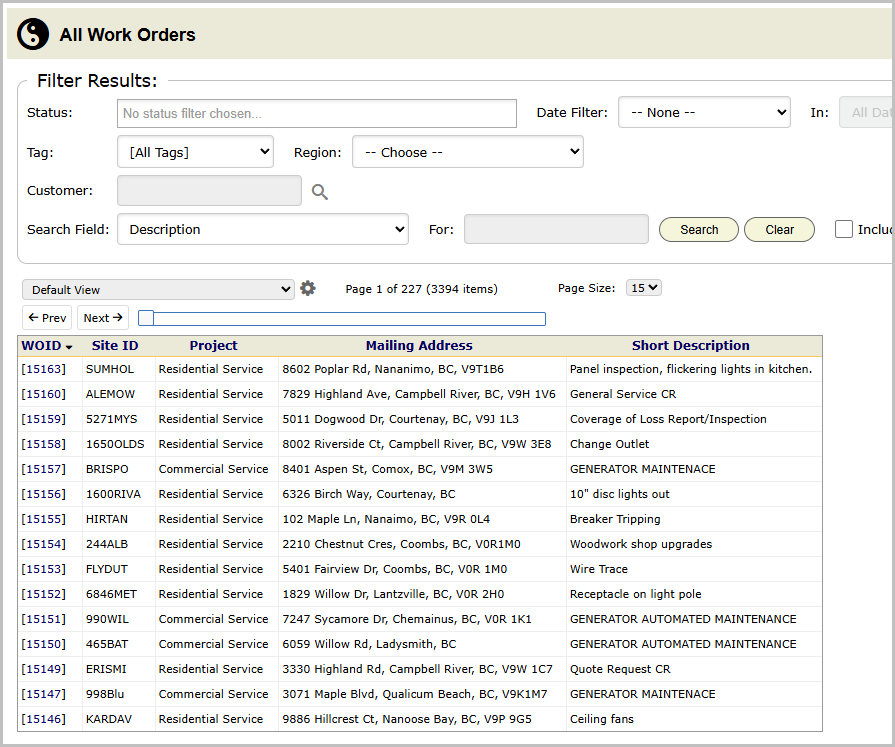
A grid is a table of records. Click a column header to sort. Cells that reference another record, a customer name, a work order ID, a site, are blue links. Click through, do what you need, come back. The pager at the top moves through large result sets.
Above most grids sits a filter area specific to that screen. For example on All Work Orders you can narrow by various filters.
Views: your saved column layouts
Views control which columns you see. A view is a named layout: the fields to show, in what order, plus one default sort field. The view selector above the grid switches between them instantly.
Creating one:
- Open the view editor from the grid’s view selector.
- Give it a name like Dispatch board or Billing review.
- Pick fields from the available list. Custom fields you’ve defined show up here too.
- Choose the sort field.
- Set the options:
- Shared makes the view available to everyone, not just you. It becomes “owned by” you. Others can use it, but only you can modify it.
- Initial makes it the default view you see when you first open this grid.
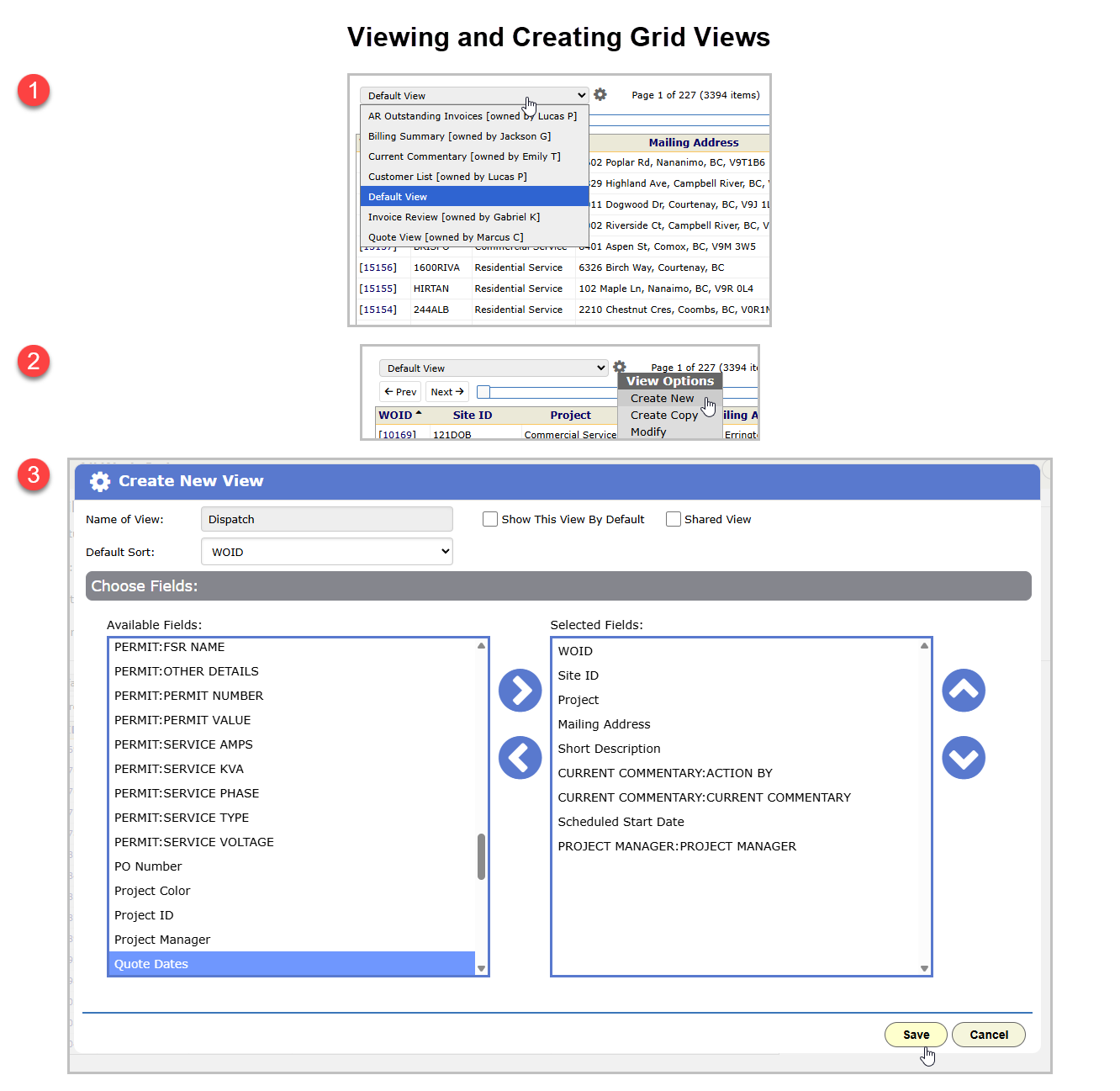
Views remember columns and sort. Your filter settings persist during your login session.
Have an admin build the handful of shared views each role needs, dispatch, billing, field, and mark the right one Initial per grid. New employees then see sensible screens on day one instead of forty columns of everything.
| Commercial: | Priya keeps a shared Inspections this month view on All Work Orders: site, status, scheduled date, assigned tech, sorted by date. (ie, for Harbor Grill) |
| Residential: | Grace’s Ready to invoice view shows completed residential work orders with customer, completion date and unbilled totals. (ie, for the Okafors) |
Exporting
Any grid exports to a spreadsheet with the columns of the current view. Build the view, export it.
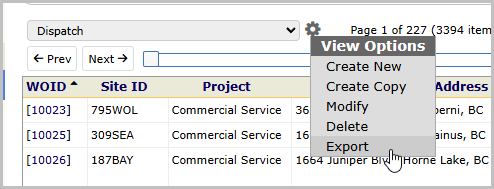
Recurring exports and the heavier import and export machinery via Excel are chapter 22 and the Part 4 reference.
Date and time controls
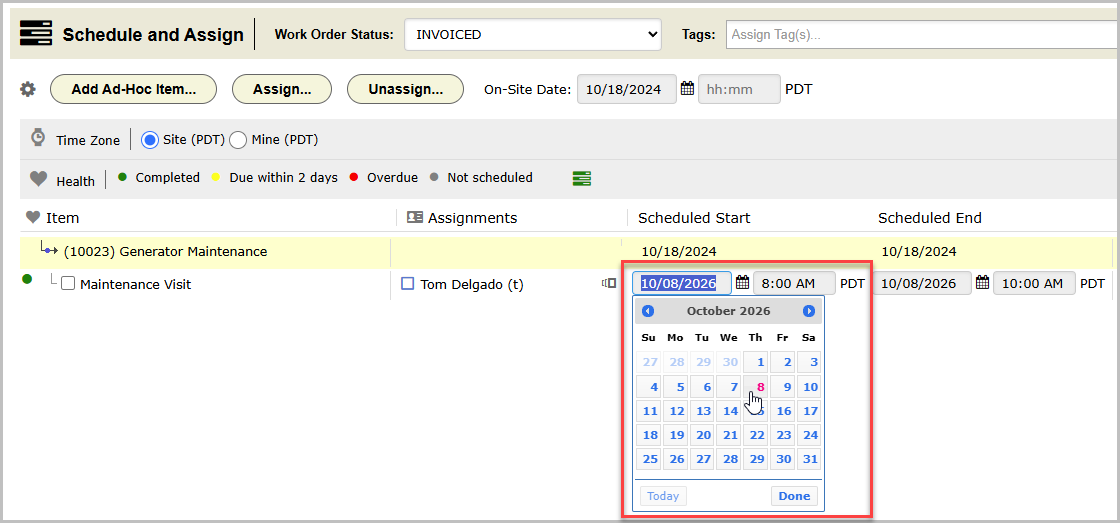
Date fields all use the same control. Type the date directly or pick from the calendar popup. The control accepts quick entry, so typing a day number on its own stays in the current month, and it validates as you type, so a bad date can’t be saved. Dot notation is quicker still: type 3.3.26 for March 3rd, 2026, and the same works for times. Your up and down arrow keys cycle through dates a day at a time, and through times in fifteen-minute steps. Chapter 16 covers how schedule dates behave, including windows and actual against scheduled.
Habits
- Sort by clicking, filter above the grid, switch views for a different job. Three different tools.
- Focus on building individualized views for yourself as well as standard views that work for the entire team.
- Share views deliberately. A dozen thoughtful shared views beat eighty personal ones with overlapping names.
Next: who sees all these screens, and what each role’s BigWave looks like.