Work Order Roles: Know Who Owns Every Job
Every work order has someone responsible for it. Now BigWave tracks who.
With Work Order Roles, you define the roles that matter to your business and assign the right people on each work order. Then you can use those assignments to filter, organize and measure your work.
Your company might need a Project Manager and a Service Coordinator. Another might add an Estimator or a Dispatcher. You choose the roles and you name them.
You also decide when each role gets filled. A role can be offered when someone creates a work order. It can be required. And each work order template can change both rules.
Define the roles your business uses
Under Actions, go to Setup > Details and open the Work Order Roles tab.
The tab lists your five role slots in two groups. Roles you use sit under Active. Roles you do not use sit under Inactive. A new company starts with all five inactive.
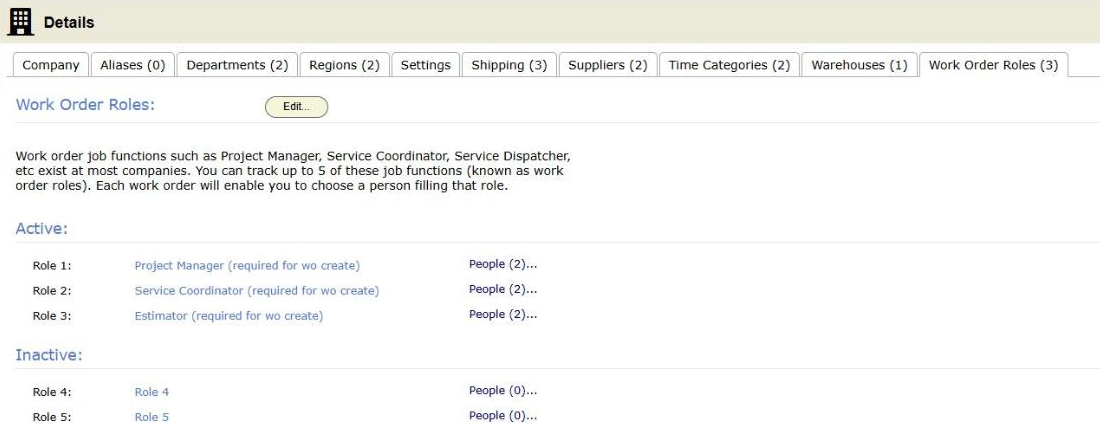
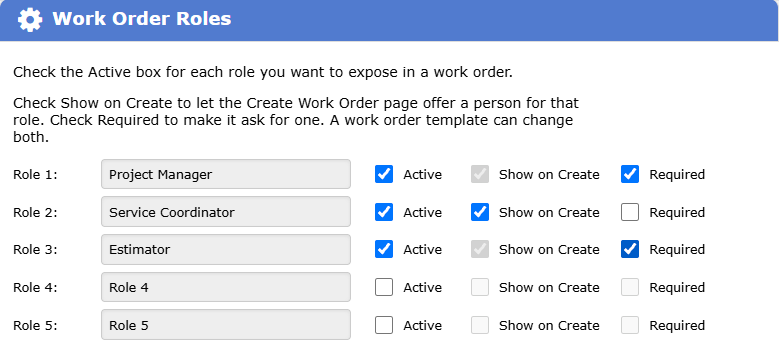
Click Edit to turn on as many as five roles. Give each one the name your team already uses. Each role has three boxes:
- Active turns the role on. An inactive role does not show anywhere else.
- Show on Create offers the role on the Create Work Order page.
- Required means the Create Work Order page must have a person in that role.
A required role is always shown. When you tick Required, BigWave ticks Show on Create for you and locks it.
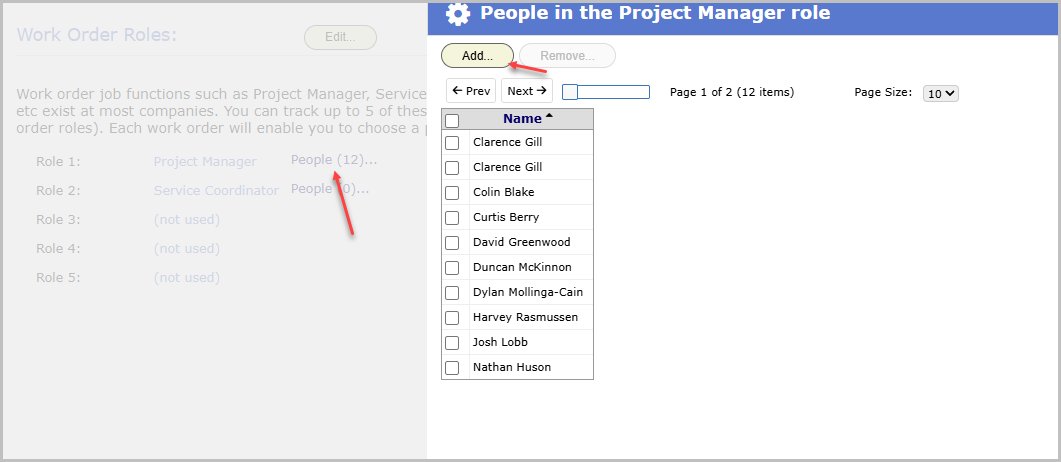
Next, pick the people who can fill each role. Click People beside a role, then click Add. When someone assigns a Project Manager to a job, they choose from that list, so your whole team works from the same names.
The number beside People counts the people on that list. It matches the list you see when you click it.
Ask for the right people when you create a work order
On the Create Work Order page, each role that has Show on Create gets a drop-down list of its people. Pick a person, or leave it empty.
If a role is Required, the work order needs a person in that role before BigWave creates it. You catch a missing Project Manager at the start, not weeks later.
Change the rules for one work order template
Different jobs need different people. A service call may not need an estimator. An install may need a project manager every time.
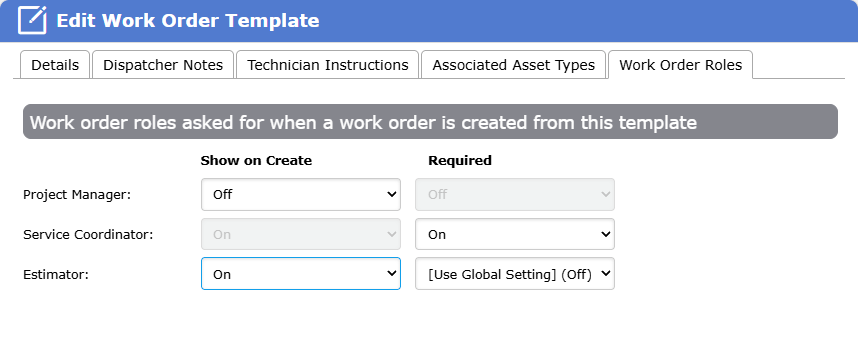
Open a work order template and click the new Work Order Roles tab. You see every active role, with two choices for each:
- Show on Create
- Required
Each choice has three settings:
- [Use Global Setting] follows the setup you made in Setup > Details. The tab shows the value it follows, for example [Use Global Setting] (On).
- On turns the choice on for this template.
- Off turns the choice off for this template.
The template always wins. A role can be required for your whole company, and one template can still switch it off. In that case the Create Work Order page does not ask for that role when someone uses that template, and the role is not required.
Two rules keep the choices in step:
- When you set Required to On, BigWave sets Show on Create to On and locks it. A required role is always shown.
- When you set Show on Create to Off, BigWave sets Required to Off and locks it. You cannot require a role that nobody sees.
Assign roles on the work order
Your roles appear on the work order’s Accounting tab. Click Edit, choose a person for each role, and save. The roles save with the rest of the work order.
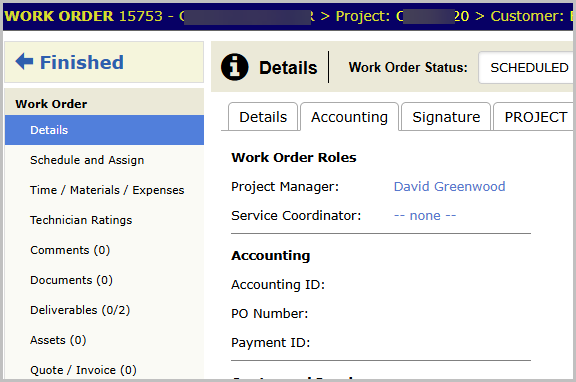
Work Order Roles track who is responsible for the job. Security Roles work the same as before.
See your work by the people who run it
Because roles are structured data, you can filter and report on them.
Start with the All Work Orders page. Filter by a role and a person to see only that person’s jobs, or add any role as a column in the grid. Save the view and you have a standing list of work for each manager, coordinator or estimator.
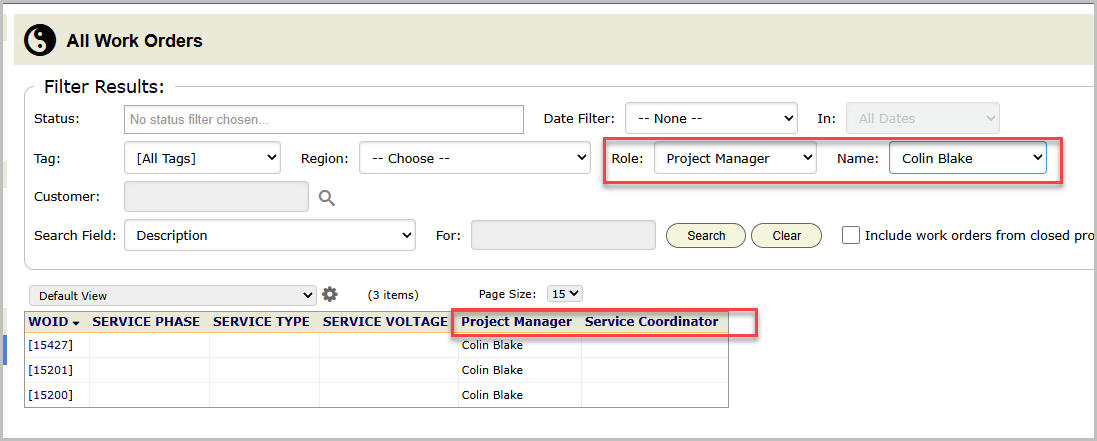
With a person tied to every job, you can start measuring how work moves under each one:
- How fast does each Project Manager get quotes out?
- How quickly do their jobs get scheduled?
- How long does each manager’s work take to go from quote to invoice?
- How much open work does each Service Coordinator carry?
Those answers show you what your best people do well, so you can help the rest of the team do the same.