How Emailing Works for Invoices, Quotes, and Credit Memos
Invoices, quotes, and credit memos are created and emailed the same way in BigWave. So rather than repeat “invoice, quote, or credit memo” throughout, this post just says “invoice.” But the instructions apply to all three.
Where the data comes from
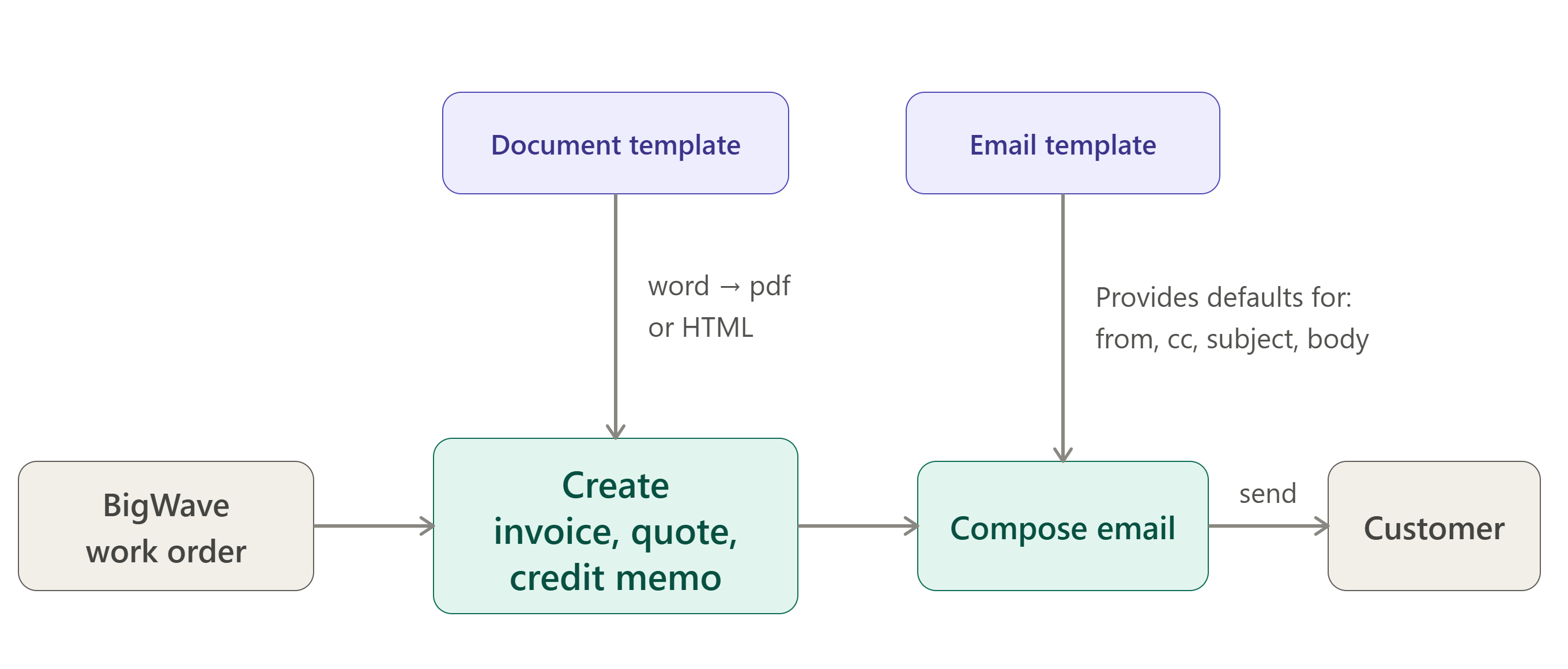
An invoice is built from a BigWave work order, and it pulls in everything attached to that job: the customer’s billing details and addresses, the work order details themselves, time cards, materials, and any other expenses logged against it. Change something on the work order and the invoice reflects it. The below diagram highlights the different components that create invoices and how they are emailed.
Two kinds of invoice document templates, two different emails
Every invoice generates from a document template, and the kind of template (Word or HTML) determines how the email looks.
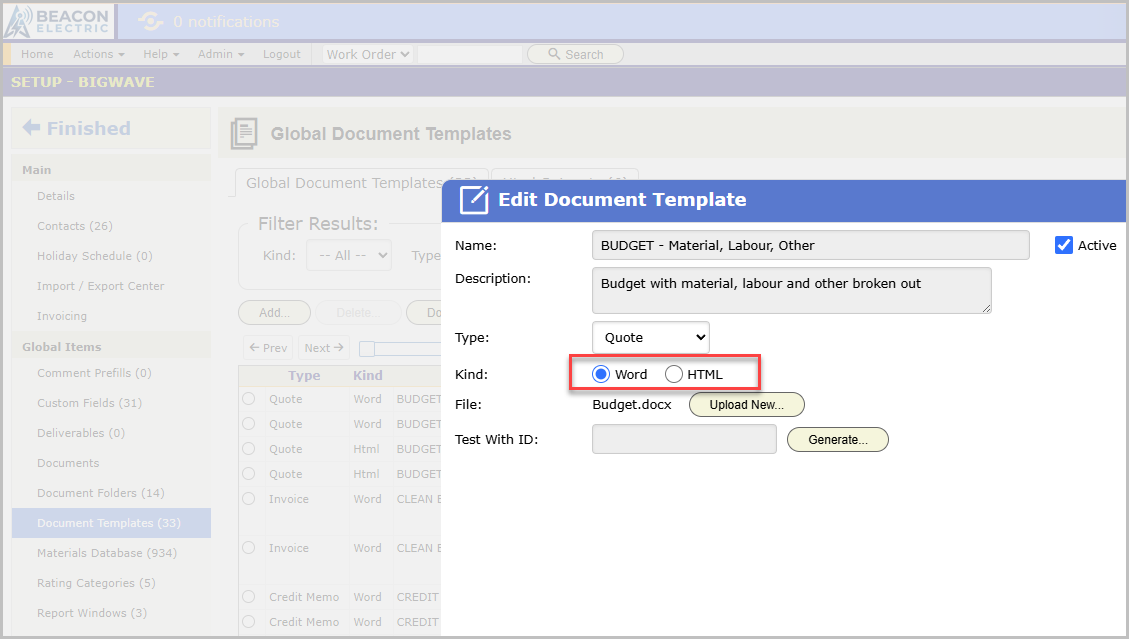
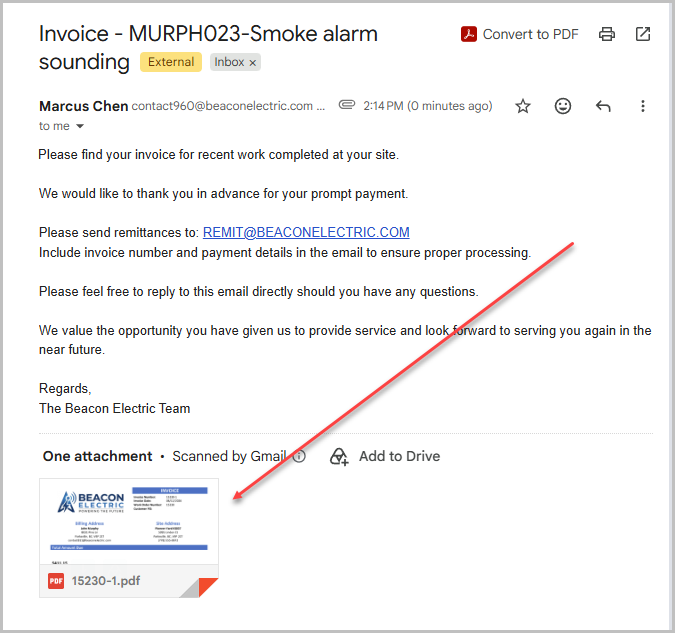
Word document templates produce a PDF. BigWave takes your Word template, fills in the work order data, and converts the result to a PDF. That PDF gets attached to the email: a short message with a file attached to it.
HTML document templates produce an email. There’s no separate attached file. The filled-in HTML document becomes the email itself. The customer opens their inbox and the invoice is what they’re looking at, no attachment to open first.
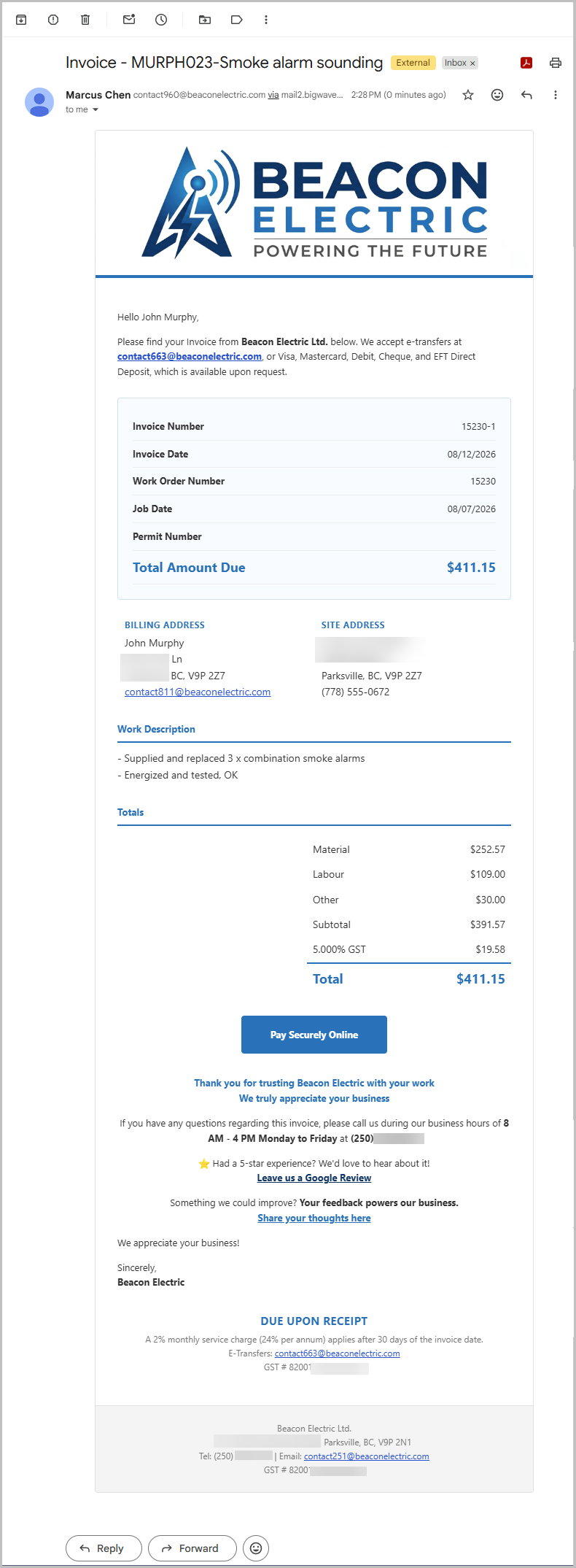
Which one gets sent is set by the document template type that was used to create that invoice. If you want the polished, attachment-free version, use an HTML kind.
What fills in the email
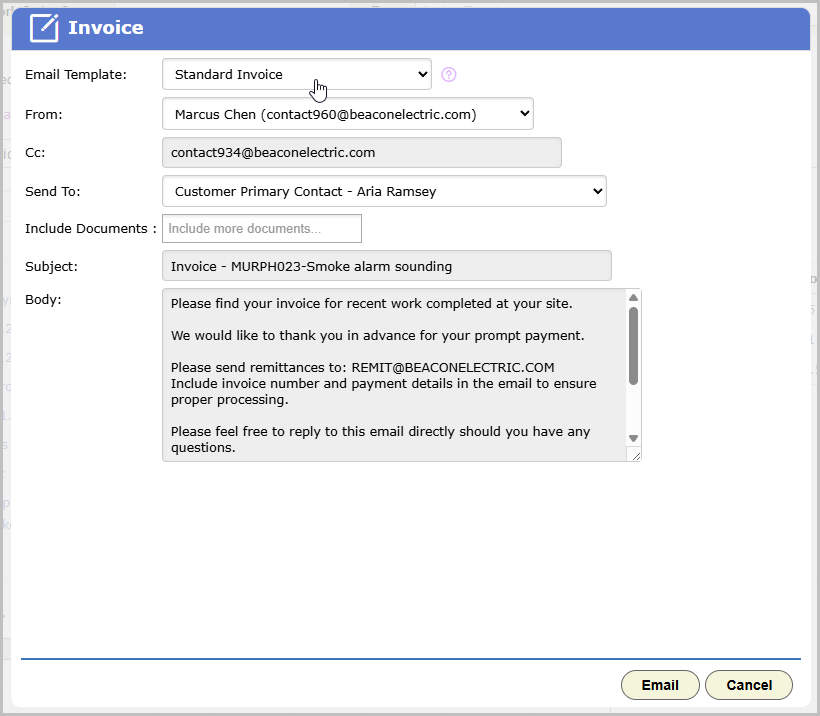
When you go to send, BigWave prepopulates the standard email fields (subject, body, sender) from an Email Template you’ve set up ahead of time. This helps you standardize From email addresses, subject lines, and the email body without having to type them each time you send an invoice email.
What that body actually looks like depends on the document type behind the invoice:
- If the invoice came from an HTML template, the email template’s Body is ignored because the invoice is the email.
- If it came from a Word template, the email goes out as plain text, with the generated PDF riding along as the attachment.
Adding your own note
Even when the invoice is the email, you can still insert custom notes into the invoice using the Body field when sending the email. If you include the [UserMessage] token, whatever you type into the email body at send time shows up right there in the invoice. A “thanks for your business” line above the total, a heads-up about a delay, whatever you want the customer to see first.
Putting it together
- Open the invoice, quote, or credit memo and choose to email it.
- BigWave fills in the subject and body from your saved Email Template.
- Depending on the document type, either a PDF attaches itself to a plain-text email, or the invoice itself becomes a formatted HTML email.
- Add a personal note if you like. It lands in the body, or wherever
[UserMessage]sits in your HTML design. - Send.