Combine Duplicate Customers
When you create a customer in BigWave, you get warned if a duplicate is detected. That doesn’t help with the two hundred duplicates already sitting in your customer list, left over from an import, or a phone call taken under a spouse’s name, or the same company added twice with a comma in a different place. Until now the fix was manual: open both records, recreate the work orders, retype the contacts, hope you got everything.
Combine Customer does the whole thing in one pass.
Start from the customer you’re keeping
Open the good record. The one with the right name, the right address, the billing setup you want. Go to Actions and pick Combine Customer.
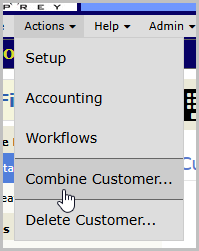
Whichever customer you launch from is the one that survives. There’s no dropdown asking which side wins, and no way to get the direction backward. You’re standing on the keeper and pulling the duplicate into it.
Pick the duplicate
BigWave takes a first pass at finding it for you. Same matching that warns you at Add Customer, pointed at your existing records instead of a new one, so each suggestion arrives with the reason attached: matched on address, matched on phone, matched on customer ID.
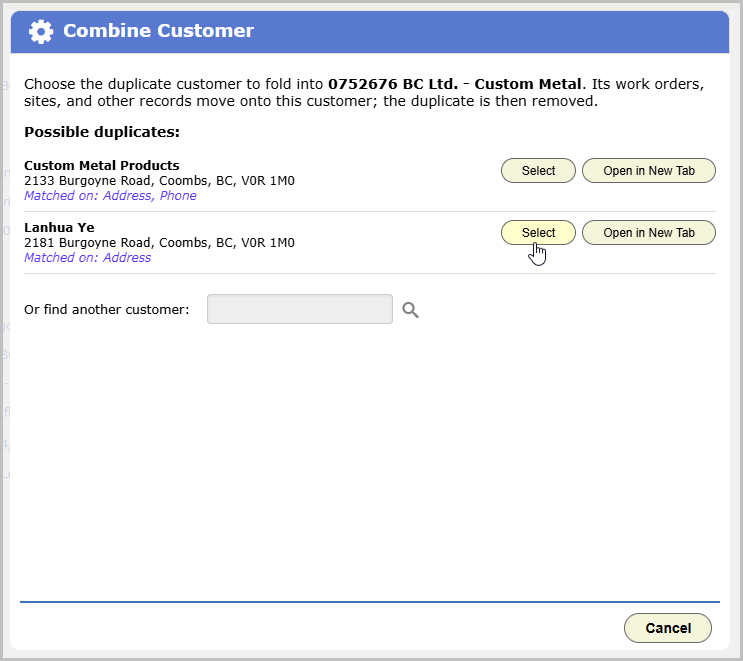
If the one you want isn’t listed, use Find Customer and search for it directly. A business and the individual who owns it never surface as duplicate candidates on their own, by design, but you can still combine them by searching. Nothing here locks you into what BigWave suggested.
Pair up the properties, then commit
The next screen is both the receipt and the one decision you have to make. Counts for everything that’s about to move, an explicit list of any contacts that will be dropped, and above that, every site on the duplicate waiting for you to say how it should land.
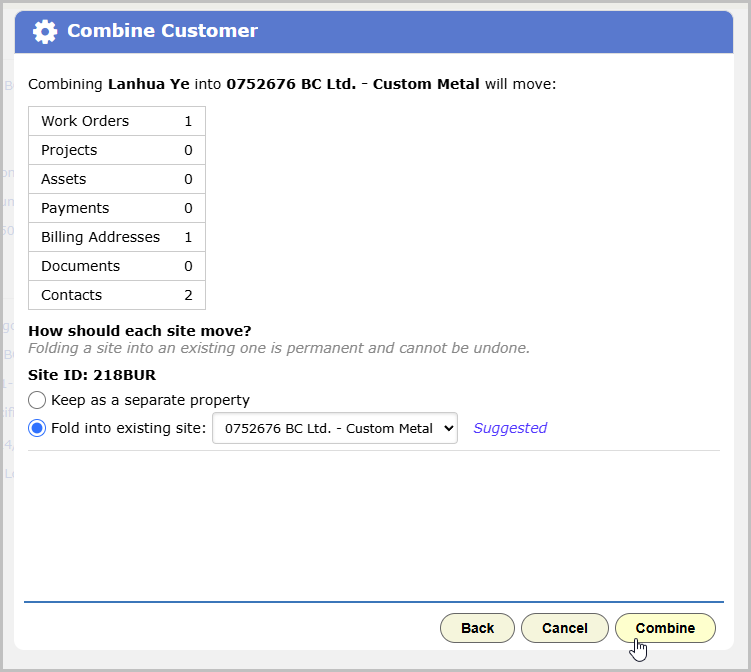
By default each site moves over as a new property under the customer you’re keeping. If BigWave sees a close address match on the surviving side, it pre-selects that site as a suggestion. If the two sites share the same Client Site ID, it flips the default to merge them.
If two sites share a Client Site ID, you have to merge them. Move them across as separate properties and the combine is blocked, because you’d end up with one customer holding two properties under the same ID.
Contacts are the only records BigWave de-duplicates, and only when it’s confident: same name, including nicknames it recognizes, plus a shared email or phone number. Anything short of that moves over.
Click Combine. The whole operation runs as one transaction, so either every record moves or none of them do. There’s no half-combined customer to untangle.
What moves and what doesn’t
Work orders move and are never deleted. Combining only re-points them at the surviving customer and its paired site.
Payments, billing addresses, assets and their schedules, documents and contacts all move over too. So do the invoice journal entries behind those payments, which keeps AR and available credits reading correctly on the customer you kept. Projects owned by the duplicate move across as well. Projects marked for all customers stay where they are.
The customer you kept does not change. Not the name, not the address, not the tax settings, not a single custom field. Combine Customer moves children, it doesn’t merge values. Anything that lived only on the duplicate as a field value, custom fields included, is left behind. If it matters, put it on the surviving record before you combine.
The duplicate drops off your active customer list once the combine is through. The record itself is kept in the background with a pointer to where it went, so a year from now, when someone asks what happened to that account, there’s an answer.
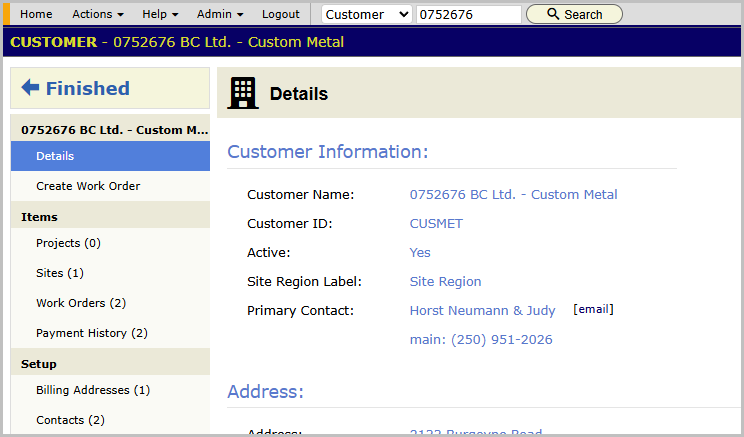
Two things worth cleaning up afterward
If both customers had a project, you’ll end up with two similarly named projects on the survivor. If you chose to move a site as new when it was really the same property, you’ll have two. BigWave leaves both alone rather than guessing, and both are a minute of manual cleanup.
What will stop a combine
An outstanding credit balance on the duplicate blocks it. Money doesn’t get quietly moved between accounts, so settle the balance first, then combine.
Combine Customer is staff-only, and it runs on the same permission that allows deleting a customer. If somebody can’t delete a customer, the menu item isn’t there.
And if you run one you shouldn’t have, Reverse Combine puts it back.